I’ve been using the macOS say command to generate voiceovers for simple videos and audio clips for AI assistants like OpenClaw. It works, but Apple’s best voices, the Siri Natural voices, can’t be selected with it. Turns out there’s a workaround.
The Problem
The say command lets you pick a voice with -v:
say -v "Samantha" "Hello world"
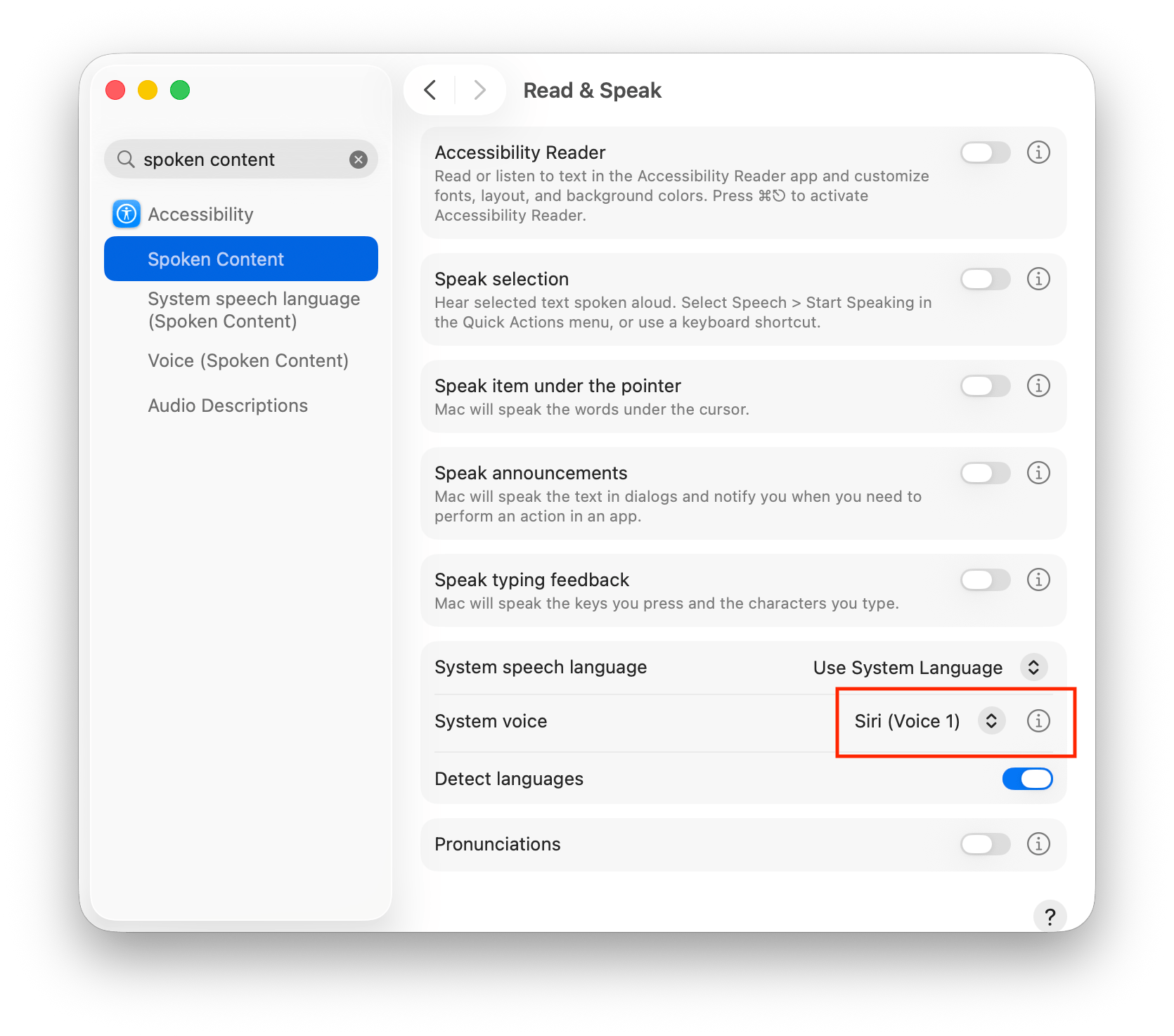
But if you run say -v '?' to list all available voices, the Siri Natural voices are nowhere to be found. They’re only available as “System Voice” in System Settings > Accessibility > Spoken Content. The older voices are fine for quick tests, but they don’t sound great.
I’ve tried a bunch of alternatives: ElevenLabs (too expensive for my use case), Kokoro, Matcha-TTS, KittenTTS, VITS, Qwen3-TTS, and probably a few more that I’ve already forgotten. They all had their issues, whether it was quality or reliability. The Siri Natural voices sound good enough and they’re right there on your Mac.
Prerequisites
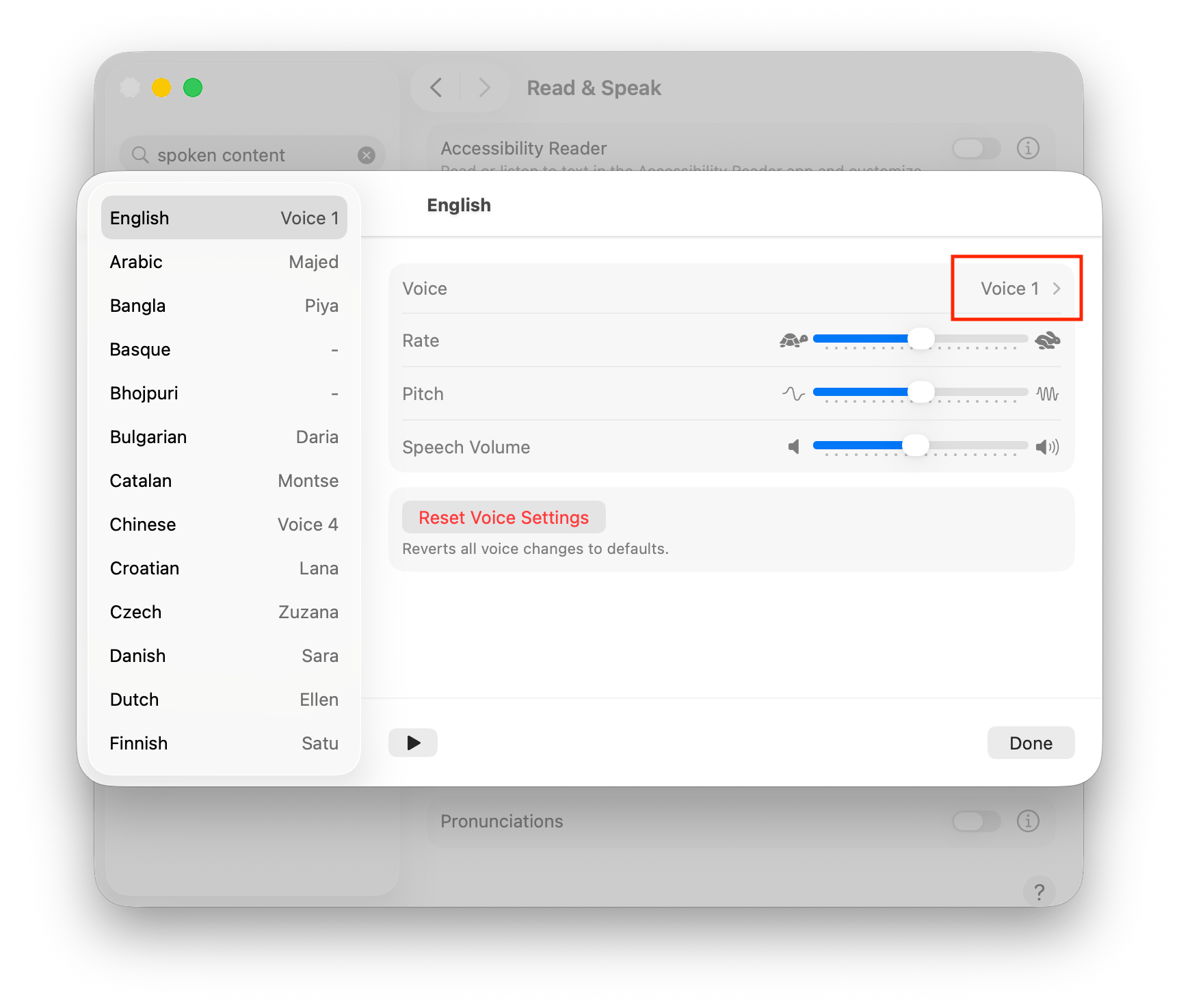
Before any of this works, the Siri voices need to be downloaded. Open System Settings > Accessibility > Spoken Content, click the info button next to “System voice”, and download the voices you want from there. Make sure to select the downloaded Siri voice in the list, so that it’s set as default for the language. Otherwise, the voice assignments will remain empty in the next step.
The Trick
Here’s what I figured out: when you run say without -v, it uses whatever system voice is configured. So the trick is to change the system voice programmatically before calling say. And it turns out you can do that with defaults write.
The voice selection is stored in com.apple.Accessibility:
# Read current voice assignments
defaults read com.apple.Accessibility SpokenContentDefaultVoiceSelectionsByLanguage
The output is an array of language/voice pairs that looks something like this:
(
    en,
        {
        "_type" = "Speech.VoiceSelection";
        "_version" = 0;
        boundLanguage = en;
        voiceId = "com.apple.siri.natural.Aaron";
    },
    de,
        {
        "_type" = "Speech.VoiceSelection";
        "_version" = 0;
        boundLanguage = de;
        voiceId = "com.apple.siri.natural.Martin";
    }
)
You also need to set the system TTS language to the language you want to use:
# Set to English
defaults write com.apple.speech.voice.prefs SystemTTSLanguage -string "en"

# Set to German
defaults write com.apple.speech.voice.prefs SystemTTSLanguage -string "de"
Putting It Together
Switch the language, call say without -v, and it uses the Siri voice:
# Switch to English
defaults write com.apple.speech.voice.prefs SystemTTSLanguage -string "en"

# Now say uses the Siri English voice
say "Hello, how are you?" -o output-en.aiff

# Switch to German
defaults write com.apple.speech.voice.prefs SystemTTSLanguage -string "de"

# Now say uses the Siri German voice
say "Hallo, wie geht es dir?" -o output-de.aiff
No need to restart any processes or kill speechsynthesisd. The defaults write alone is enough and the next say invocation picks up the new language immediately.
Caveats
A few things to keep in mind:
- This relies on undocumented internals, so future macOS versions could change the plist format.
- Tested on macOS 26 (Tahoe), but could work with earlier versions as well.
ClawHub Skills
I’ve created a say skill on ClawHub that wraps all of this into a reusable agent skill (while very useful for OpenClaw). If you’re also interested in the opposite direction, speech-to-text, check out my yap skill. It’s based on yap by Finn Voorhees, which uses Apple’s Speech framework for fast on-device transcription. I prefer it over Whisper CLI, which was less reliable and slower for me. Both skills are macOS only.
I hope this helps if you’ve ever been frustrated by not being able to use Siri voices in your scripts. It’s a simple trick, but it took me a while to even think of this approach. 